
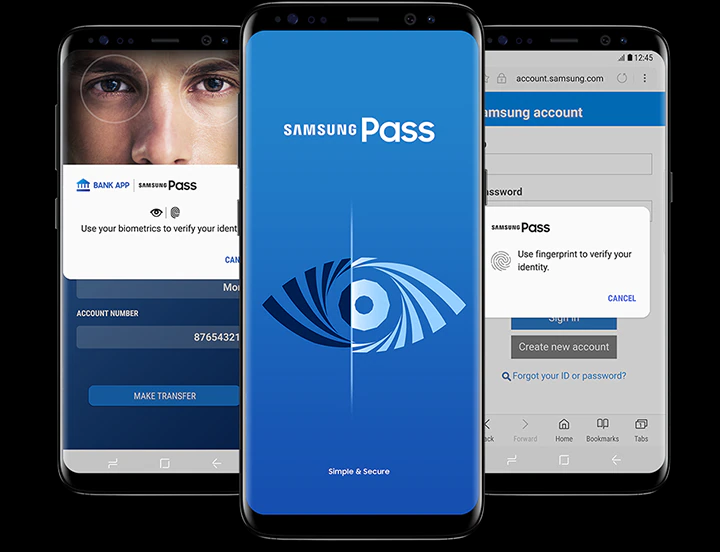
In an era where data breaches make headlines almost daily, safeguarding your online credentials has never been more critical. With the average person juggling dozens of accounts across apps, websites, and services, relying on memory or reusing weak passwords is a recipe for disaster. Enter the samsung password manager, a built-in tool designed to simplify and secure your digital life. Integrated seamlessly into Samsung devices, this password manager often referred to as Samsung Pass leverages advanced biometrics to store, autofill, and protect your login details. Whether you’re a long-time Galaxy user or just exploring options, understanding its capabilities can enhance your security without complicating your routine. In this article, we’ll dive deep into its features, usage, and more, helping you decide if it’s the right fit for your needs.
What is Samsung Password Manager?
Samsung password manager is essentially Samsung Pass, a secure identity management service embedded in Samsung Galaxy devices. It acts as a vault for your passwords, usernames, and even personal details like addresses and card information, allowing quick access via biometrics such as fingerprint or face recognition. Unlike traditional password managers that require master passwords, Samsung Pass prioritizes biometric verification, making logins faster and more intuitive. It’s powered by Samsung Knox, a defense-grade security platform that encrypts data and isolates it from potential threats.
This tool isn’t just about storage; it’s about streamlining your daily interactions. For instance, when you sign into an app or website, Samsung Pass can autofill your credentials automatically after a quick scan. It’s free for Samsung users and ties into your Samsung account, ensuring sync across compatible devices. While it’s optimized for the Samsung ecosystem, its focus on ease and security makes it a standout for Android enthusiasts.
Key Features of Samsung Password Manager
The samsung password manager shines through its thoughtful features that blend security with convenience. Here’s a breakdown of the top ones you should know:
Biometric Authentication for Seamless Access
At the core is biometric login, using your fingerprint, face, or (on older models) iris scan to unlock accounts. This eliminates the hassle of typing passwords, reducing errors and speeding up the process. It’s especially useful for high-frequency logins, like banking apps or social media.
Autofill for Apps and Websites
Samsung Pass excels at autofilling login details across supported apps and the Samsung Internet browser. It also handles one-time passwords (OTPs) and personal info, making online shopping or form-filling effortless. Note that compatibility is best within the Samsung ecosystem, though it works with many third-party apps.
Secure Storage and Encryption
All data is encrypted and stored locally on your device via Samsung Knox, which provides hardware-backed protection against hacks. Biometric data never leaves your phone, adding an extra layer of privacy.
Device Sync and Integration
Your credentials sync across Samsung devices linked to the same account, including phones, tablets, and even TVs or PCs in some cases. It integrates with Samsung Wallet for managing payments and digital keys.
Passkey Support
For modern security, it supports passkeys a passwordless alternative encrypted with your biometrics. This is available on devices running One UI 6 or higher and works on passkey-enabled sites.
To give you a clear overview, here’s a table comparing key features of Samsung Password Manager with popular alternatives like Google Password Manager and Apple Keychain:
| Feature | Samsung Password Manager | Google Password Manager | Apple Keychain |
|---|---|---|---|
| Biometric Support | Fingerprint, Face, Iris | Fingerprint, Face | Fingerprint, Face |
| Autofill Compatibility | Apps, Samsung Browser | Apps, Chrome | Apps, Safari |
| Cross-Device Sync | Samsung Devices Only | Android, Chrome OS | Apple Devices |
| Encryption | Samsung Knox | Google Encryption | Apple Secure Enclave |
| Passkey Integration | Yes (One UI 6+) | Yes | Yes |
| Cost | Free | Free | Free |
Samsung Password Manager on Android: Getting Started
For samsung password manager android users, setup is straightforward since it’s pre-installed on most Galaxy devices running Android 7 or higher. To access it:
- Open Settings on your phone.
- Navigate to Biometrics and Security > Samsung Pass.
- Sign in with your Samsung account.
- Register your biometrics if not already done.
Once set up, it prompts to save credentials during logins. For deeper management, head to the Sign-in tab to edit or delete entries. This integration makes it ideal for everyday Android use, where biometrics feel natural and reliable.
Using Samsung Password Manager on PC
While primarily mobile-focused, samsung password manager on pc is possible through extensions and apps. You can download the Samsung Pass app from the Microsoft Store for Windows, which syncs login info from your mobile device. There’s also a Chrome Web Store extension that allows autofill on desktops. For Samsung Galaxy Book owners, it’s natively integrated for seamless sync.
However, it’s not fully cross-platform like dedicated managers it’s best for hybrid Samsung setups. If you’re on a non-Samsung laptop, the Chrome extension works but requires your phone nearby for initial sync.
Samsung Password Manager Download and Installation
For samsung password manager download, it’s typically pre-loaded on Galaxy devices. If missing, grab it from the Galaxy Store or official Samsung site. Avoid third-party sources to prevent security risks. On PC, head to the Microsoft Store or Chrome Web Store for the respective versions. Installation is quick: just sign in with your Samsung account and verify biometrics.
Samsung Password Manager Login: Free and Secure
The samsung password manager login free process is biometric-driven, so no need for a traditional password after setup. It’s entirely free, tied to your Samsung account, and activates with a scan. This approach minimizes phishing risks, as hackers can’t easily replicate your biometrics.
How to View Passwords in Samsung Password Manager
For samsung password manager view password, navigate to Settings > Biometrics and Security > Samsung Pass > Sign-in tab. Here, you’ll see a list of saved apps and sites. Tap one to reveal, edit, or delete the password after biometric verification. It’s a secure way to manage without exposing data unnecessarily.
Samsung Password Manager Forgot Password: Recovery Steps
If you’ve hit a snag with samsung password manager forgot password, focus on your Samsung account recovery. Visit account.samsung.com, click “Reset password,” enter your email, and follow the prompts. For device locks, use Find My Mobile or a factory reset as a last resort. Always back up data first to avoid losses.
Samsung Password Manager Review: Strengths and Limitations
In this samsung password manager review, it earns praise for its integration and security. Pros include effortless biometrics, Knox protection, and free access perfect for individual users. It scores high on ease, with users noting faster logins and reliable autofill.
Cons? It’s ecosystem-locked, lacking full cross-platform support and team-sharing features. Biometric glitches (like dirty sensors) can frustrate, and it’s not ideal for businesses needing advanced tools. Overall, it’s a solid 4/5 for Samsung loyalists but may require supplementation for broader use.
Samsung Password Manager APK: Safety Considerations
Downloading the samsung password manager apk from sites like APKMirror can be tempting for older devices, but stick to official channels. Unofficial APKs risk malware, so verify sources and enable Play Protect. If needed, version 5.2.03.4 is recent, but pre-installed is safest.
The Role of Samsung Pass in Password Management
Samsung Pass is the backbone of the samsung password manager, evolving from a simple authenticator to a full-fledged password manager. It handles everything from logins to payments, emphasizing biometrics over keys. For users, this means less memorization and more focus on productivity.
FAQ
How do I find my saved passwords on Samsung?
Go to Settings > Biometrics and Security > Samsung Pass > Sign-in tab, then authenticate with biometrics to view your list.
How do I access Samsung password manager?
Open Settings on your Galaxy device, tap Biometrics and Security, then select Samsung Pass and sign in.
How to find Samsung account password?
If forgotten, visit account.samsung.com and use the Reset Password option with your email.
How do I see all my saved passwords?
In Samsung Pass, under the Sign-in tab, scroll through the apps and websites; tap to view details after verification.
Is Samsung Password Manager compatible with non-Samsung devices?
Limited; the Chrome extension works on any PC, but full features require Samsung hardware.
Can I export passwords from Samsung Password Manager?
No direct export, but you can manually copy from the view screen or switch to another manager for migration.
How secure is Samsung Password Manager compared to others?
It’s highly secure with Knox encryption, but ecosystem limits make it less versatile than cross-platform options like Bitwarden.
Conclusion
Samsung password manager, through Samsung Pass, offers a robust, user-friendly way to handle credentials with top-tier security features like biometrics and Knox protection. From autofill on Android to PC extensions, it caters well to Samsung users seeking simplicity. If you’re in the ecosystem, enable it today for peace of mind head to your settings and get started.
