Every growing business reaches the same breaking point. Customer emails pile up in a shared inbox, one person answers a question twice while another question goes unanswered for days, and nobody can say which requests are still open. That is the moment help desk software starts to make sense. What is help desk software and how to choose one is the question this guide answers in plain English, so you can pick a tool that fits your team instead of buying the most expensive option on the market.
In this guide you will learn what help desk software does, how it works day to day, which features matter, what it typically costs, and a simple step by step process for choosing the right one.
What Is Help Desk Software?
Help desk software is a tool that collects customer questions and support requests from different channels, turns each one into a trackable ticket, and helps your team answer them in an organized way. Instead of requests scattered across personal email inboxes, chat apps, and phone notes, everything lands in one shared workspace where anyone on the team can see what needs attention.
Think of it like a reception desk for a busy office building. Every visitor checks in at the same desk, gets a number, and is directed to the right person. Nobody gets lost in the hallway. Help desk software does the same thing for customer requests. Each email, chat message, or form submission becomes a ticket with an owner, a status, and a full history of the conversation.
The software is also called customer service software, support software, or a ticketing system. The names vary, but the core job is the same: make sure every customer request is seen, assigned, answered, and closed, with nothing slipping through the cracks. For a neutral overview of the category, see Wikipedia’s help desk software page.
A common point of confusion is the difference between a help desk and a help center. A help center is a self service website where customers find answers on their own, usually through articles and FAQs. Help desk software is the tool your team uses to answer people one by one. Most modern help desk products include a help center as part of the package, so you often get both in one subscription.
How Help Desk Software Works
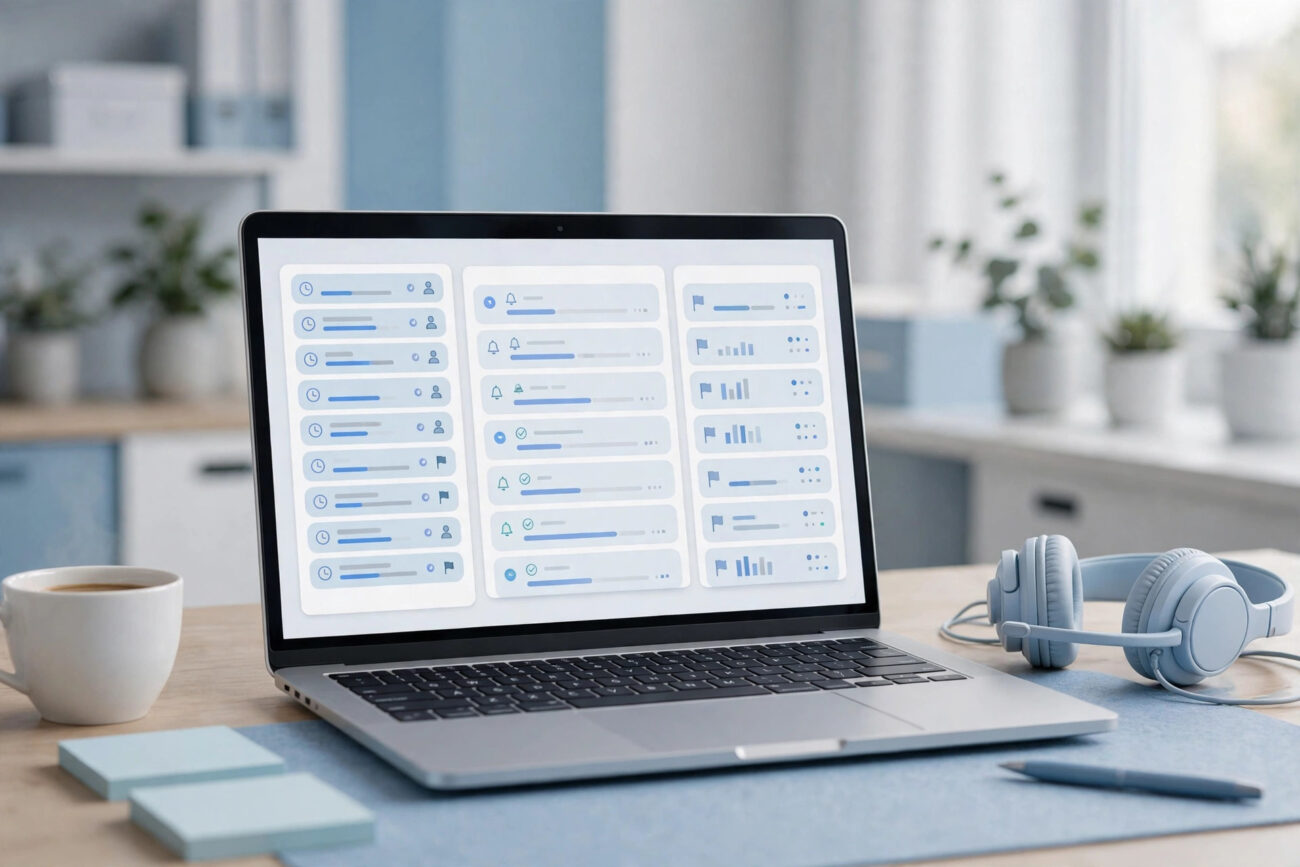
The workflow is simpler than most vendors make it sound. A customer reaches out through email, live chat, a web form, social media, or phone. The software captures that message and creates a ticket automatically, with a number, a priority level, and a status such as open, pending, or solved.
Next, the ticket is routed to the right person or team, automatically based on rules you set or manually by a team lead. The agent who picks up the ticket sees the full conversation history, including past tickets from the same customer, so the customer never has to repeat their story.
While the ticket is open, the agent replies from inside the software, using internal notes for comments the customer never sees. If the issue needs an expert, the ticket can be escalated without losing the thread. Once solved, the customer usually gets a short satisfaction survey, and managers can see reports on ticket volume, response times, and the topics that come up most often. Those reports reveal the problems worth fixing at the source.
Here is a typical day with help desk software in place: the team opens one shared queue instead of five separate inboxes, repeat questions get answered in seconds using saved replies, and a manager spots that ten tickets this week are about the same billing page and flags it for the product team. By end of day nothing is left unassigned, and every customer has received at least a first reply.
Types of Help Desk Software
There are four main types, and most businesses fit clearly into one of them.
| Type | Best For | Typical Channels | Price Range |
|---|---|---|---|
| Shared inbox | Teams of 1 to 3 people | Email only | Free to about $15 per user per month |
| Lightweight ticketing | Small teams of 3 to 15 people | Email, forms, basic chat | About $15 to $40 per user per month |
| Omnichannel suite | Growing teams of 15 or more | Email, chat, phone, social, knowledge base | About $40 to $115 per user per month |
| IT service desk | Internal employee support | Portal, email, chat, asset tracking | About $20 to $100 per user per month |
A shared inbox is the simplest step up from regular email. It lets a small team see the same messages, assign them, and avoid double replies. It has no real ticketing or reporting, but for a team of two or three it is often enough.
A lightweight ticketing tool adds tickets, statuses, saved replies, and basic reports. This is the sweet spot for most small businesses: real organization without paying for features you will never open.
An omnichannel suite brings every channel into one place, adds automation, AI suggested replies, and a built-in knowledge base. Products like Zendesk, Freshdesk, and Intercom live here, and they suit teams handling hundreds of tickets a week across several channels.
An IT service desk is built for internal requests: password resets, laptop repairs, software access. It adds asset tracking and approval workflows. If your customers are your own colleagues, this is your category.
The mistake to avoid is buying an omnichannel suite when a lightweight tool would do. Start with the type that matches your team size today, and upgrade when ticket volume forces you to.
Key Features to Look For
Feature lists on vendor websites run long, and most of the items on them will not change your daily work. These are the features that actually matter.
- Ticket management: tickets with owners, statuses, priorities, and a full conversation history. This is the core of the product, and it should feel fast and obvious.
- Shared inbox: all channels feeding one queue, so agents work from a single screen instead of jumping between apps.
- Automation: rules that assign tickets, tag them, and send first replies automatically. Even simple automation saves hours every week.
- Knowledge base: a built-in help center where you publish answers to repeat questions. Every article you write is a ticket you will never receive.
- Saved replies: templates for common answers, so agents reply in seconds with consistent, polished wording.
- Reporting: first response time, resolution time, ticket volume by topic, and customer satisfaction scores. Without reports you are guessing.
- Integrations: connections to your email, CRM, billing system, and chat tools. Check that the tools you already use are supported before you buy.
- AI assistance: newer tools offer AI that drafts replies or answers simple questions automatically. Useful, but treat it as a helper, not a replacement for your team. Note that AI features are often priced separately, so ask for the full price including AI before you sign up.
How Much Does Help Desk Software Cost?
Help desk software is almost always priced per agent per month, which means the bill grows with every person on your support team. Free plans exist, but they usually limit the number of agents, tickets, or channels. Typical price ranges, based on what major vendors publish on their pricing pages, look like this:
- Free plans: $0 for 1 to 3 agents, with basic ticketing and email support only.
- Basic paid plans: typically $15 to $30 per agent per month, adding automation, saved replies, and more channels.
- Mid tier plans: typically $40 to $70 per agent per month, adding a knowledge base, advanced reporting, and AI features.
- Enterprise plans: typically $90 to $150 or more per agent per month, with custom service level agreements and advanced security.
To estimate your real cost, multiply the per agent price by the number of people who will log in, then add any AI or phone add-ons. A team of five agents on a $25 plan costs about $125 per month, or about $1,500 per year. Watch for hidden costs: some vendors charge extra for phone support, AI features, or onboarding help, and many raise the price when you renew after the first year. Annual billing often saves around 15 to 20 percent, which is worth taking once you are sure the tool fits.
Pros and Cons of Help Desk Software
Help desk software solves real problems, but it is not free of trade-offs. A clear view of both sides helps you set expectations before you roll it out.
Pros:
- No request gets lost. Every message becomes a ticket with an owner and a status.
- Faster replies. Saved replies, routing, and a shared queue cut response times sharply.
- Better customer experience. Agents see the full history, so customers stop repeating themselves.
- Data for decisions. Reports show which problems repeat, so you can fix root causes instead of answering the same question forever.
Cons:
- Monthly cost per agent adds up, especially as the team grows.
- Setup takes time. Rules, templates, and the knowledge base need real work before launch.
- Agents need training. A powerful tool used badly is worse than a simple tool used well.
- Risk of over automation. Too many auto replies can make customers feel ignored.
How to Choose Help Desk Software: A Step by Step Process
Choosing help desk software does not need a three month evaluation. Follow these steps and you can shortlist, trial, and decide within two weeks.
Step 1: Write down your requirements first. Before you look at any vendor, list your channels, your team size, your must have integrations, and your monthly budget. Five bullet points is enough. If you skip this step, every demo will look impressive and you will choose based on salesmanship instead of fit.
Step 2: Pick the type before the tool. Use the table above. A shared inbox and an omnichannel suite are not competitors for the same team. Decide which type matches your size and volume, then compare only tools in that type.
Step 3: Shortlist two or three tools. Read the pricing page of each one carefully, including what is missing from the cheaper plans. Check that your email provider, CRM, and chat tool are supported.
Step 4: Run a real trial. Sign up for the free trial and answer actual customer requests with it for a week. A demo shows the tool at its best. A trial with real tickets shows the friction your team will actually feel. Invite the agents who will use it daily and ask them what annoyed them.
Step 5: Check the exit. Before you pay, ask how you export your tickets and customer data if you leave.
Step 6: Start small and grow. Roll it out to one team or one channel first, write your ten most common saved replies, and publish five help center articles. Expand once the basics feel smooth.
One more practical tip: sort your last twenty customer messages into two piles before you buy anything. Pile one holds questions you have answered before, pile two holds questions that need a personal reply. If pile one is bigger, you need a help center first and a help desk second. If pile two is bigger, buy the help desk now.
Small teams often wonder whether they are too small for this kind of tool. The honest answer is that team size matters less than ticket volume and confusion. If two people are already stepping on each other’s replies, or if a customer has ever waited three days for an answer nobody saw, you are big enough. The same principle applies to other organizing tools, like the password and account tools covered in our guide to Samsung Password Manager features: a small system used well beats a big system used badly.
Frequently Asked Questions
What is help desk software used for?
Help desk software is used to collect, organize, and resolve customer support requests. It turns messages from email, chat, forms, and phone into tickets that a team can track, assign, and close, and its reports show response times, ticket volume, and the topics customers ask about most.
What is the difference between help desk software and a help center?
A help center is a self service website where customers find answers on their own through articles and FAQs. Help desk software is the tool your team uses to answer customers one by one through tickets. Most modern help desk products include a help center, so you often get both in one subscription.
Do small businesses need help desk software?
Small businesses need it once requests start getting lost or answered twice, which can happen with as few as two people handling support. A free plan or a shared inbox is often enough at the start. The trigger is not headcount, it is confusion: if a customer has ever waited days for a reply nobody saw, the business is ready.
How much does help desk software cost?
Most products charge per agent per month. Free plans cover 1 to 3 agents with basic features. Paid plans typically run $15 to $30 per agent per month for basic ticketing, $40 to $70 for mid tier plans with a knowledge base and automation, and $90 to $150 or more for enterprise plans. AI features and phone support are often priced separately.
What are some examples of help desk software?
Well known examples include Zendesk, Freshdesk, Intercom, Zoho Desk, and Jira Service Management. Smaller teams often use lightweight tools like Help Scout or shared inbox products. Compare tools within the same type rather than across types, since the right choice depends on team size, channels, and budget.
Is help desk software the same as a CRM?
No. A CRM tracks sales relationships, deals, and customer data across the buying journey. Help desk software tracks support requests and resolutions after the sale. The two tools often integrate, so an agent can see a customer’s purchase history while answering a ticket, but they solve different problems.
Conclusion
Help desk software is a simple idea done well: every customer request becomes a ticket, every ticket gets an owner, and nothing gets lost. Choose the type that matches your team size, count your seats before you count features, and trial two or three tools with real tickets before you pay. Get those steps right and your customers will notice the difference within the first week.
For more on the software tools that keep a small business organized, see our guides to fixing slow MySQL queries and Google Block Breaker setup and best practices.
